Policies
OpenGRC provides comprehensive policy management capabilities to create, maintain, and track organizational security and compliance policies. Policies can be linked to controls, implementations, and risks for complete traceability.
Overview
Policies in OpenGRC are organizational documents that define rules, guidelines, and standards for security and compliance. The policy management feature supports:
- Full policy lifecycle management (draft to retirement)
- Version control with revision history
- Document attachments (PDF, Word, DOCX)
- Linking to controls, implementations, and risks
- Department and scope classification
- Owner assignment and accountability
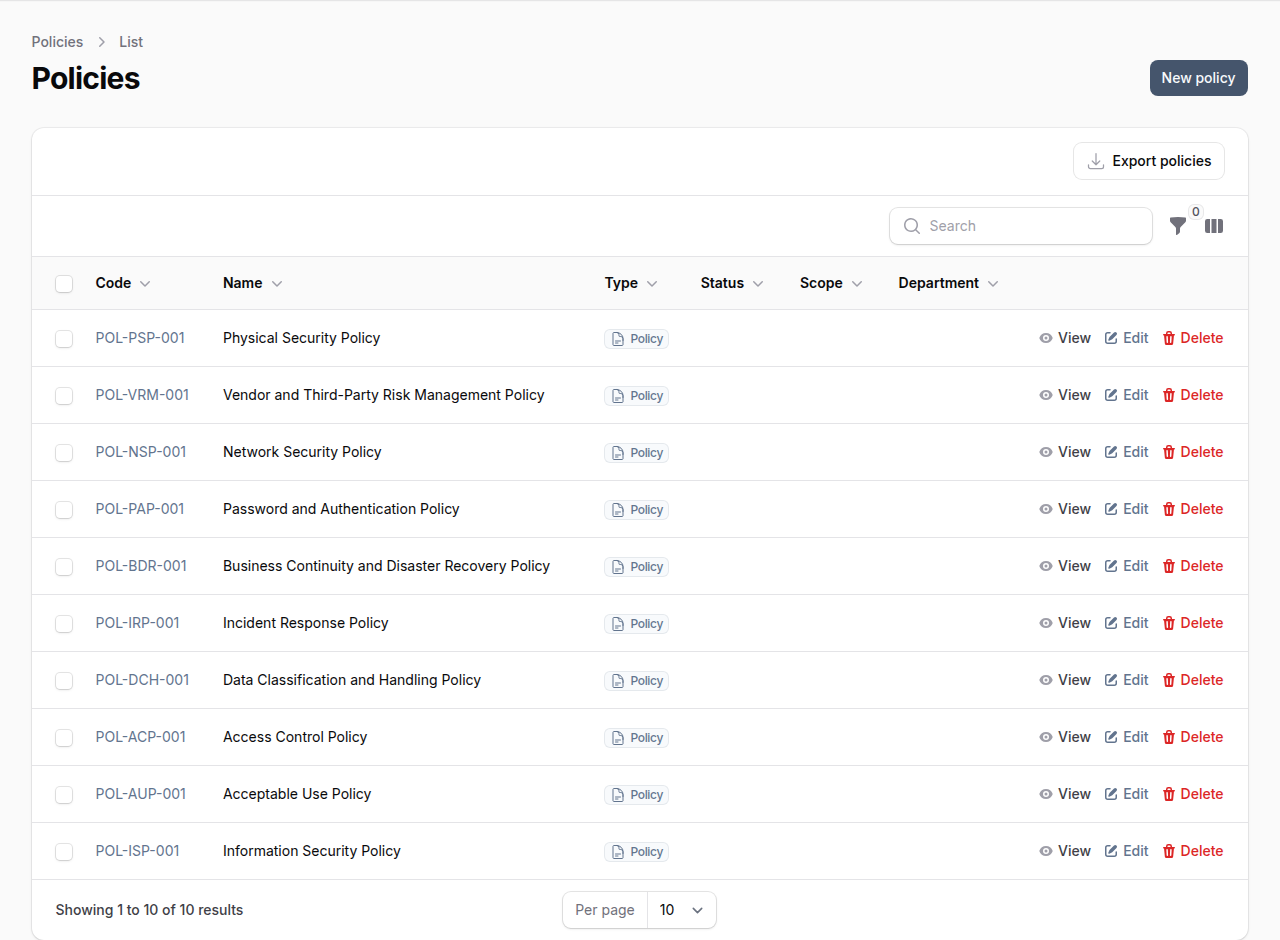
Policy Attributes
Each policy includes the following information:
| Field | Description |
|---|---|
| Code | Unique identifier (e.g., POL-001) |
| Name | Policy title |
| Status | Current lifecycle status |
| Type | Document type (Policy, Procedure, Standard) |
| Department | Responsible department |
| Scope | Applicability scope |
| Owner | Policy owner (user) |
| Effective Date | When the policy takes effect |
| Retired Date | When the policy was retired (if applicable) |
| Policy Scope | Rich text describing what the policy covers |
| Purpose | Rich text describing why the policy exists |
| Body | Full policy content (rich text) |
| Document | Attached policy document file |
| Revision History | Version tracking with dates and changes |
Policy Statuses
Policies progress through the following statuses:
| Status | Description |
|---|---|
| Draft | Initial draft, not yet reviewed |
| In Review | Under review by stakeholders |
| Awaiting Feedback | Waiting for stakeholder input |
| Pending Approval | Awaiting formal approval |
| Approved | Officially approved and active |
| Archived | No longer active but retained for reference |
| Superseded | Replaced by a newer policy version |
| Retired | Permanently retired from use |
Policy Scope Levels
Policies can be scoped to different organizational levels:
- Organization-wide -- Applies to the entire organization
- Department-specific -- Applies to a specific department
- Project-specific -- Applies to a specific project
- Regional -- Applies to a specific region
- Global -- Applies globally across all entities
Creating a Policy
- Navigate to Policies in the main navigation
- Click New Policy
- Enter a unique Code or use the auto-generated format
- Enter a descriptive Name
- Select the Status (typically Draft)
- Select the Department and Scope
- Assign a policy Owner
- Set the Effective Date
- Add policy content in Policy Scope, Purpose, and Body fields
- Optionally attach a document (PDF, DOC, DOCX -- max 10MB)
- Click Create to save
Viewing a Policy
The policy detail view shows the full policy content with metadata in a clean, readable format.
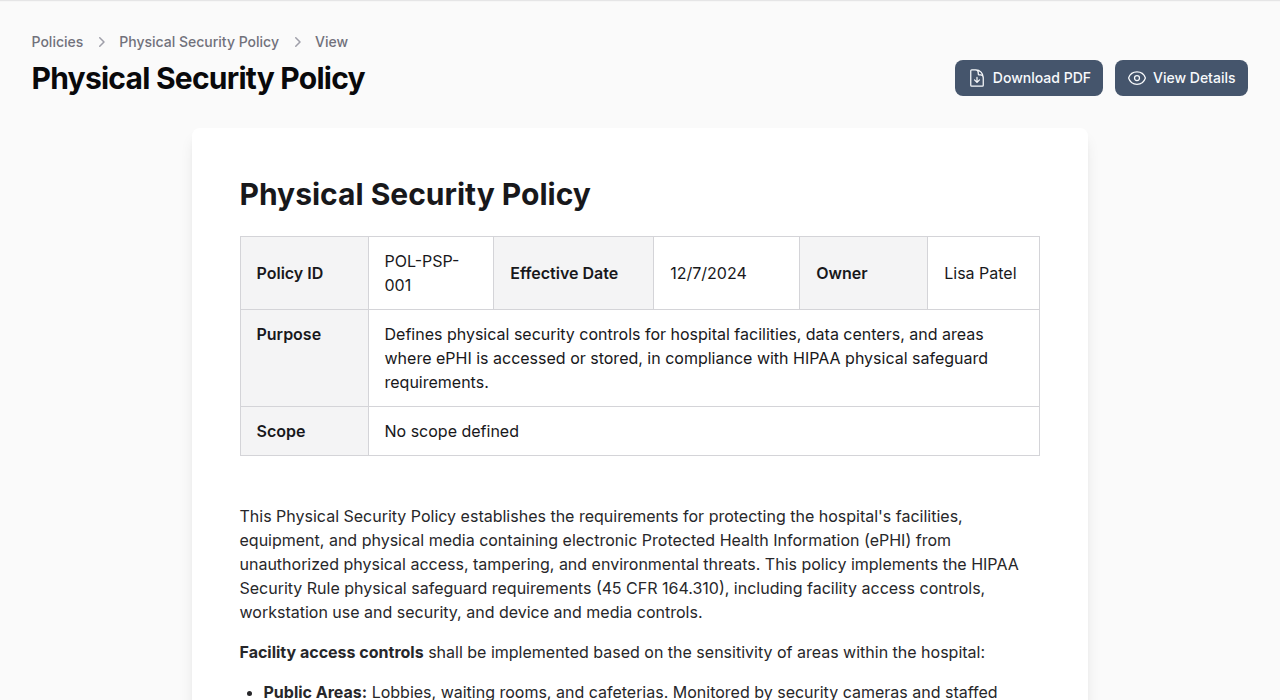
The detail view includes:
- Header with policy code, effective date, owner, and status
- Purpose section explaining why the policy exists
- Scope section defining applicability
- Body with full policy content rendered as rich text
- Attached document available for download
- Revision history table tracking all versions
Linking Policies
Controls
Associate policies with security controls:
- Open the policy detail view
- Go to the Controls tab
- Click Attach to add controls
- Search and select relevant controls
Implementations
Associate policies with implementations:
- Open the policy detail view
- Go to the Implementations tab
- Click Attach to add implementations
Risks
Associate policies with risks they address:
- Open the policy detail view
- Go to the Risks tab
- Click Attach to add risks
Version Control
Adding Revisions
When updating a policy:
- Open the policy for editing
- Scroll to Revision History
- Click Add Revision
- Fill in version number, date, author, and changes description
- Save the policy
Viewing Revision History
The revision history displays all versions chronologically, showing version number, revision date, author, and summary of changes.
Filtering and Searching
Search policies by code, name, scope content, or purpose content.
Filter the policy list by:
- Status -- Draft, Approved, Archived, etc.
- Scope -- Organization-wide, Department-specific, etc.
- Department -- Responsible department
- Has Document -- Whether a document is attached
Permissions
| Permission | Capabilities |
|---|---|
| List Policies | View the policy list |
| Create Policies | Create new policies |
| Read Policies | View policy details |
| Update Policies | Edit existing policies |
| Delete Policies | Remove policies |
Best Practices
- Use consistent naming -- Establish a naming convention for policy codes and titles
- Set review schedules -- Plan regular policy reviews (annually recommended)
- Track all changes -- Add revision history entries for every significant update
- Link to controls -- Connect policies to the controls they support for traceability
- Assign clear ownership -- Every policy should have an accountable owner
- Archive don't delete -- Use Archive or Retired status instead of deleting policies
- Keep documents current -- Update attached documents when policies change
Related Documentation
- Policy Acknowledgements -- Enterprise feature for distributing approved policies for workforce sign-off